The initial data for the 10 most popular baby names each year (2001-2010) had too much information to be efficiently represented in one graph. That meant before beginning the graph, I had to decide what I actually wanted to display; If I was just presenting the top 10 baby names in a ten year span, I didn’t need to denote the gender of the names or include both number of babies with that name and the ranking out of ten. I pared down the data until it was just a three columned chart with rank, year, and name. That chart is then what I plugged into RAWGraphs to create a visualization for the data.
The nature of my data meant that most of the options weren’t very compatible. Many graphs, such as line graphs, didn’t work well with a list of names, other options needed more components, and still others were incredibly confusing. Through trial and error, I chose the Matrix Plot style, as it was the most understandable at first glance.
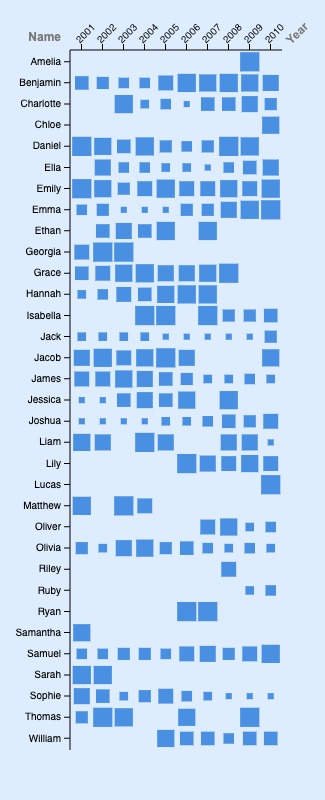
Beyond the first glance, I think this style is appropriate because it displays the data in several different ways. For instance, you can look down a year column and see the top ten names that \\year, or, you can look down the row and see how the popularity of one name changes throughout the decade. You can also compare the popularity of different names in the same year or compare their general trends.
Because I chose ranking v.s year instead of the number of babies with that name v.s year, the squares are all uniform sizes between 1-10, indicating the rank. I think this is appropriate because I want the graph to represent popularity, not the number of babies. In this format, you can tell which name is number 1 and number 10 each year. This makes comparisons easier and more accurate than if the squares were based on a wider range of numbers.
Once RAWGraphs had generated a default Matrix Plot graph, I edited the settings in several ways to improve clarity. First, I set the names to be arranged in alphabetical order rather than the order from the original chart data. This removed the gender sorting, which wasn’t a necessary addition to the data. I edited the left margin to fit the names (specifically Samantha, which was hanging over the edge), and then made sure the background fit the new graph size. The last thing I did was add color, to make it more engaging. I chose blue because blue makes me think of baby blue, which ties into the theme of the data.
The biggest thing from Lin’s lecture that both stuck out to me and was kept in mind while making my visualization was her emphasis on finding the “story” within the data. This idea is very interesting to me because a common assumption about data visualization, specifically graphs, is that it is objective. However, data visualization is data as interpreted, making it subjective. The goal of data visualization isn’t necessarily to present data, but rather to present the conclusions that the creator wants you to reach.

I love the clarity of your graph! It is very visually appealing yet easy to understand. I really like how it also provides an idea of names that dropped out of the top 10 over the decade. Your color was consistent and you got rid of gender in your graph addressing some of the problems of categorization brought up in the article we read for homework. The only thing that might confuse the graph is that rank 1 is represented by the smallest squares and rank 10 is represented by the biggest squares. I would normally associate number 1 with a bigger square but other than that it is very clear what is going on!